Choose the version before installing anything
| Route | Use it for | Keep in mind |
|---|---|---|
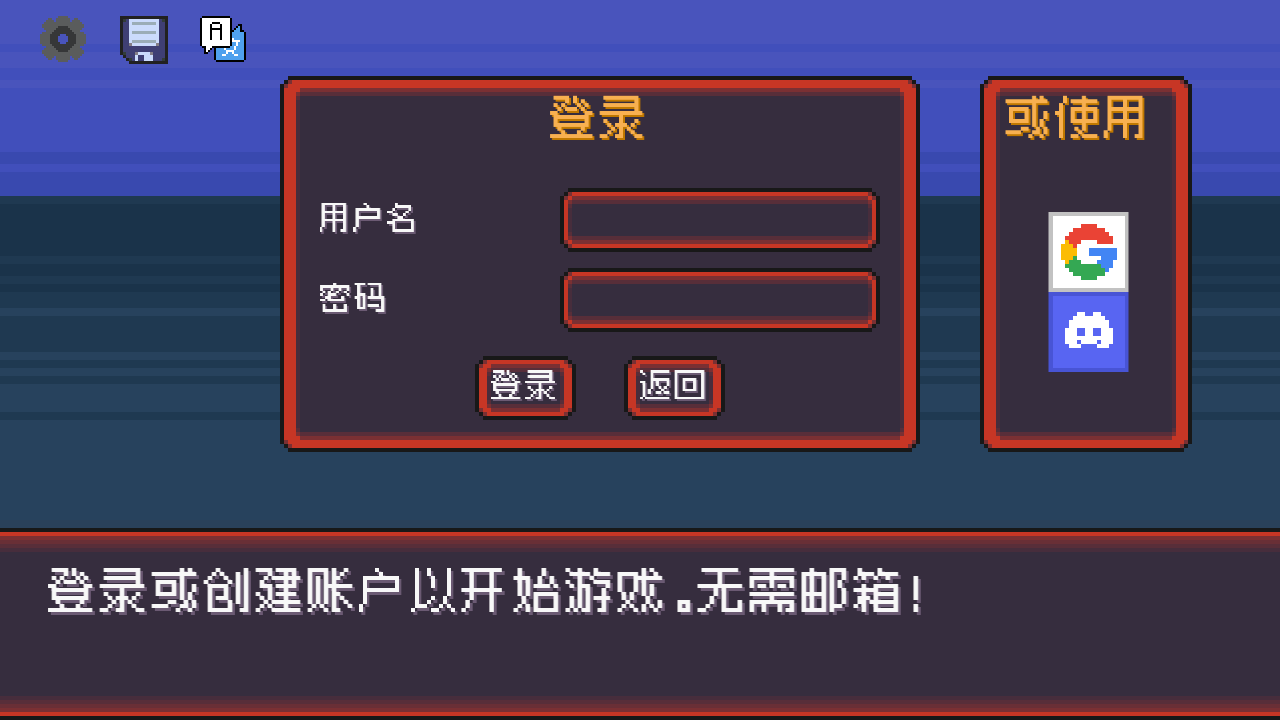
| pokerogue.net in your browser | Starting with the original online game. | The inspected client opens a login/account screen; this site does not provide an account or host your run. |
| Home-screen web app or shortcut | Opening that same site with less browser chrome. | Adding a shortcut does not create an offline copy of the game or remove its account requirements. |
| Admiral Billy’s community app | A separate wrapper with an offline mode option. | It is a community project. Desktop and Android packages differ; follow its own release instructions rather than a random download mirror. |
Start with the browser route unless you specifically need the community wrapper’s features. This keeps the choice clear: changing how a site opens is different from changing which game files and save system you use.
Open the original game
Open PokéRogue on pokerogue.net ↗ (opens in a new tab)
- Check the address is pokerogue.net. A matching name alone is not enough: one .app search result inspected in this research offers a collection of different mini-games.
- Let the initial game files load, then read the login or account choices. Returning players should use their existing game account rather than treating another fan game’s account as interchangeable.
- If you only want a home-screen entry, use your browser’s installation or add-to-home-screen feature. The exact label depends on the browser and OS.
The captured screen above is from the original client, with its language set to Chinese. It identifies the account step; we did not sign in, create an account or test a complete run.
Add a home-screen entry
The community’s mobile guide documents these routes:
- Android / Chrome: open the original site, then look in the browser’s three-dot menu for Install app or Add to Home screen.
- iPhone / Safari: open the site, use the browser’s share controls and choose Add to Home Screen.
If the wording or option is missing, continue in the browser while checking that browser’s current help. An absent installation prompt is not a reason to download an unrelated APK. A home-screen launch also does not establish that offline play or crash-free performance is supported.
In-game navigation uses directional controls and a confirm/cancel action rather than assuming every element works like a normal webpage. Consult the PokéRogue Wiki controls ↗ (opens in a new tab) for the current mappings. Physical-phone controls and installation were not tested in this check.
Keep offline progress separate
The community wrapper’s author documents downloading game files and switching to offline mode. Its desktop README links a separate Android project. Those instructions are not evidence of an official iOS app, and the desktop menu sequence should not be presented as an Android walkthrough.
The Wiki’s community-tools page says data can transfer from online to offline, but not back from offline to online. Treat an offline run as a separate commitment. Before changing versions, read the wrapper’s current instructions and keep a backup through the supported export process; do not erase browser data as a general repair step.
If something fails, first record whether you are using the original browser site, a home-screen shortcut or the community app, along with the device and failure stage. A login problem, a failed offline-file download and a crash after battles are different issues. This page does not claim one universal fix.
Sources and checks
Checked 6 November 2026: original client reached its account screen in desktop Chrome. Sources: community mobile guide ↗ (opens in a new tab) for home-screen steps; Wiki community tools ↗ (opens in a new tab) for wrapper identity and transfer direction; wrapper author’s desktop README ↗ (opens in a new tab) and Android repository ↗ (opens in a new tab) for project boundaries. No app package was installed and no physical phone or account synchronization was tested.