Set up a first session in Training
These instructions follow the original Alpha 0.64.0 menus inspected on 4 November. This is a short startup check, with no completed League or online-ranked run claimed.[1]
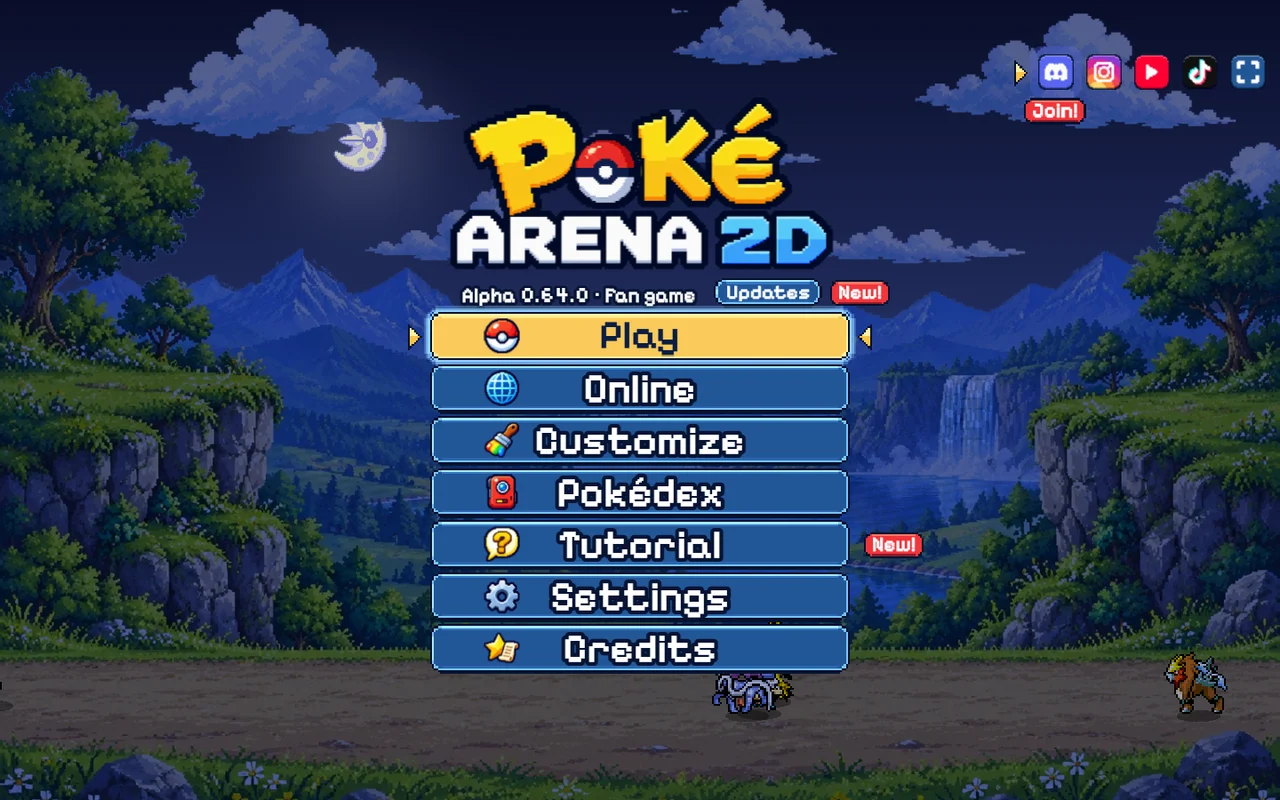
- Open the original game using the button above. Wait for its title menu. Use Play for the on-device mode list. Online is a separate title-menu choice.
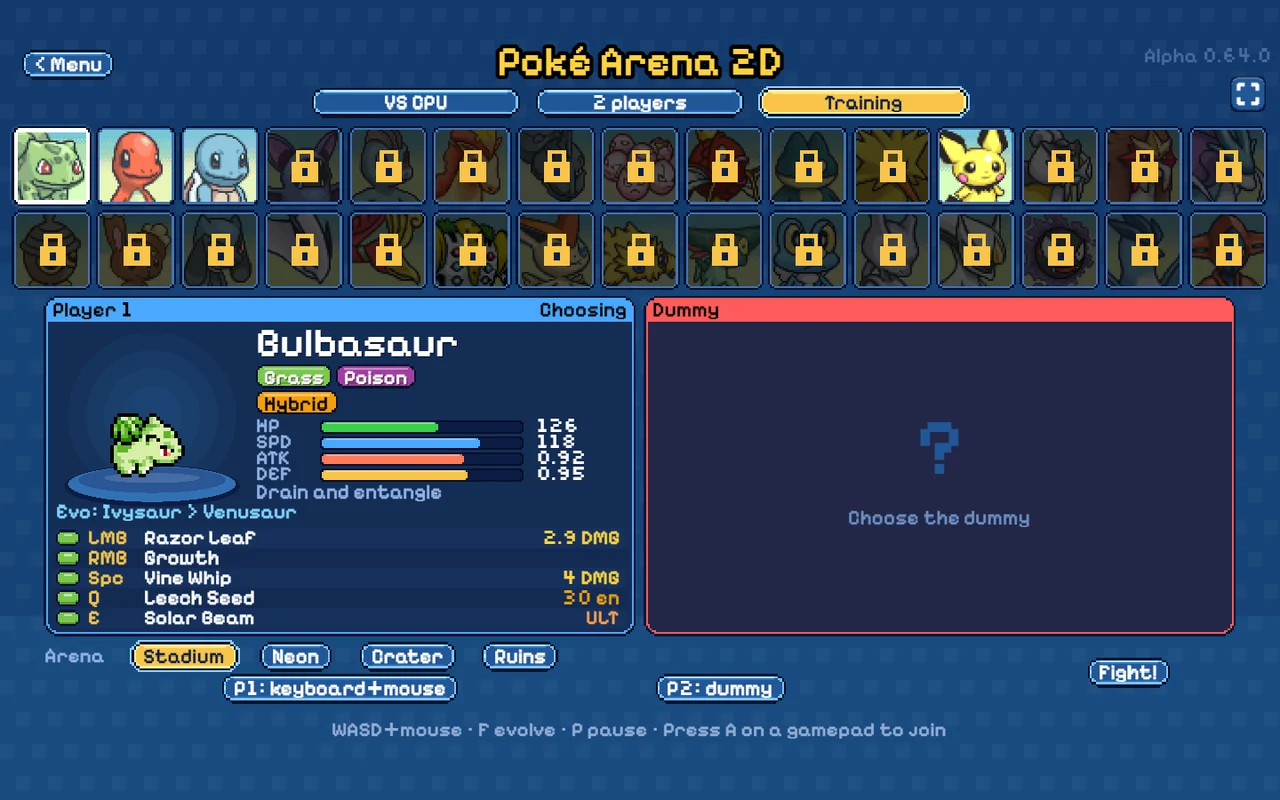
- Choose Training. The same Play menu also lists League, VS CPU, 2 players and Arena. Training lets you choose a Pokémon and a dummy.
- Choose an available Pokémon in the top roster for Player 1, then choose the dummy. Read the selected kit and input labels before pressing Fight! Choose an offered arena along the bottom.
- Practice movement and aiming first. Follow the move labels for your selected kit, then return to the menu to choose a different mode when ready.
Locks are visible on part of the roster. This guide does not promise that every advertised Pokémon is available on a fresh save, or give an unverified unlock route. Open the game's Tutorial and Settings for its current explanations and input options.
Read the selected kit before fighting
The inspected Training selector shows WASD + mouse, F to evolve and P to pause. The selected Bulbasaur panel labels LMB, RMB, Space, Q and E for its attacks. Follow the current panel for your Pokémon instead of applying another browser game's keys.[1]
The original advertises keyboard/mouse, gamepad and phone play. Its game page requests landscape orientation on phones. Mobile-size inspection is separate from a physical-phone or controller test, which we have not performed.
Keep the host and browser for your progress
The project's privacy notice says that session data, settings and League progress use browser local storage, and that clearing browser data removes them. Keep the same site and browser profile while continuing a League. Cross-device recovery or transfer has not been tested here.[2]
The project says you can play without an account, with accounts used for online modes. Its online 1v1 connections use WebRTC according to that notice. We have not tested account creation, ranked matchmaking or connection fixes. Use the original site's own support links if its service stalls.
Check the domain before following a guide
| Project | How to identify it | Use this route |
|---|---|---|
| Poké Arena 2D | pokearena2d.com; inspected Alpha 0.64.0 title menu and Training selector. | Original-game launch above |
| Big Kid Nation's Pokémon Arena 2D | pokemonarena2d.com; its developer currently lists a December 2026 public beta, with no playable release of that project yet. | Big Kid Nation · project status ↗ |
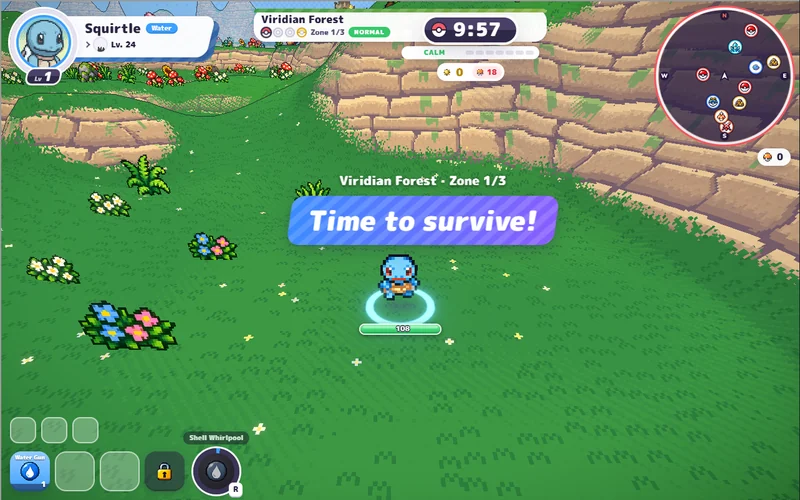
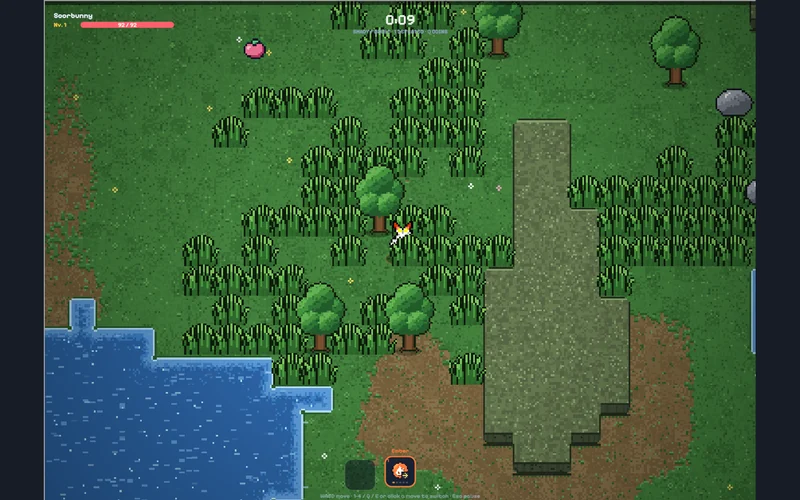
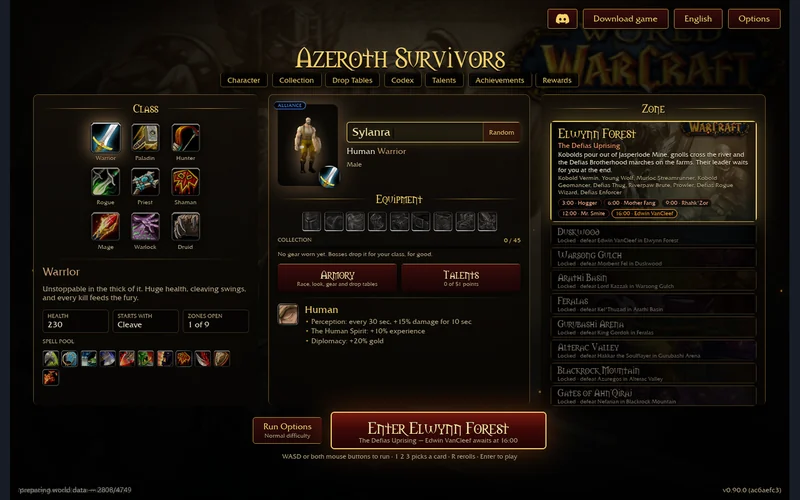
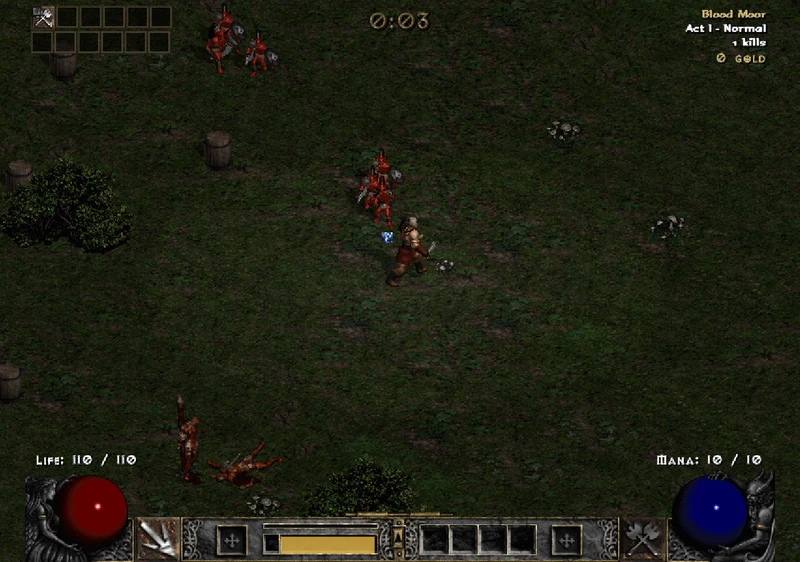
| PokeBonk / PokéSurvivor | Separate Pokémon-themed survival games with their own controls, hosts and progress. | PokeBonk game window · PokéSurvivor game window |
Similar names do not establish shared accounts, saves, rosters or release dates. The Big Kid Nation beta announcement does not describe the already accessible pokearena2d.com game.[3]
Sources & verification
By Megabonk.org · checked 4 November 2026. Independent, source-based instructions with an original-host startup inspection. Pokémon names and game artwork belong to their respective owners. This fan game and this guide are unaffiliated with Nintendo, GAME FREAK and The Pokémon Company.
- Poké Arena 2D · original game ↗ — Alpha 0.64.0 title, Play and Training menus inspected in desktop Chrome. The original response prohibits remote framing. SINGLE_SOURCE for this project's menus. No full clear, ranked-match or physical-device benchmark.
- Poké Arena 2D · project privacy notice ↗ — local progress, accounts and WebRTC statements, read 4 November. Policy statements, not save-recovery tests.
- Big Kid Nation · separate Pokémon Arena 2D project ↗ — December 2026 beta plan checked 4 November. A different game.